How to Do Time Calculation in Excel for Windows
Learn time calculation in Excel for Windows: subtract times, handle overnight intervals, deduct breaks, total durations and convert to decimal hours.
On this page
Excel stores numeric times as fractions of a day. You need to select the result format appropriately: Custom → [h]:mm, or General/Number for decimal hours, and [h]:mm for elapsed durations calculated by subtracting complete date-and-time values.
You can calculate durations by subtracting two numeric time values directly. However, when calculating a known forward interval shorter than a day from clock times alone, you can use remainder arithmetic (MOD), since subtracting the start time from an earlier end time would otherwise give a negative result. With complete dated timestamps, you can subtract directly.
When you want to add up multiple duration values, they are stored internally as fractions of a day. But you must format the total cell with the proper [h]:mm Custom type; else, it will be displayed as a standard clock time.
If you want to move a timestamp forward a number of hours, add them as a fraction of a day (30 hours = 30/24). You can also use TIME() for whole hours below 24, but TIME(30,0,0) adds only six hours.
I’ll work through several examples here. If you’d like separate arithmetic checks, connect to this site’s dedicated tools.
Numeric Time Values and Result Formatting
The first example is how I usually think about numeric time values. Excel stores them as fractions of a day. That means that 12:00 PM is represented as 0.5. When you enter numeric values into a cell, such as 10:00 PM, Excel converts them to numbers. The value of “10:00 PM” in Excel is 0.916666…, which is 22/24.
If you want to use this as a time interval, you should make sure that the result cell has the appropriate formatting. Choose the cell where your result will appear, press Ctrl+1 to open the Format Cells window, choose Custom, then click on Type. Enter “[h]:mm”, then click OK. For 10:00 PM, you should see 22:00.
If instead you choose General or Number, you will get the decimal representation, such as 0.916667 for 10:00 PM. In addition, if you’re subtracting timestamps (dates and times), the result will be the elapsed duration between the two. Use [h]:mm to display it in hours and minutes. For example, November 4, 2026 at 9:00 AM is a timestamp, but subtracting it from a later timestamp gives an elapsed period.
To convert this to decimal hours, just multiply the result by 24. So, a duration that spans from November 4, 2026 at 9:00 AM to November 5, 2026 at 4:30 PM represents 31.5 hours. Multiply the result by 24 to get this decimal equivalent. Enter November 4, 2026 at 9:00 AM in A2 and November 5, 2026 at 4:30 PM in B2. Then =B2-A2 displays 31:30 with [h]:mm, while =(B2-A2)*24 displays 31.5 with General or Number.
Calculate Overnight Intervals with MOD
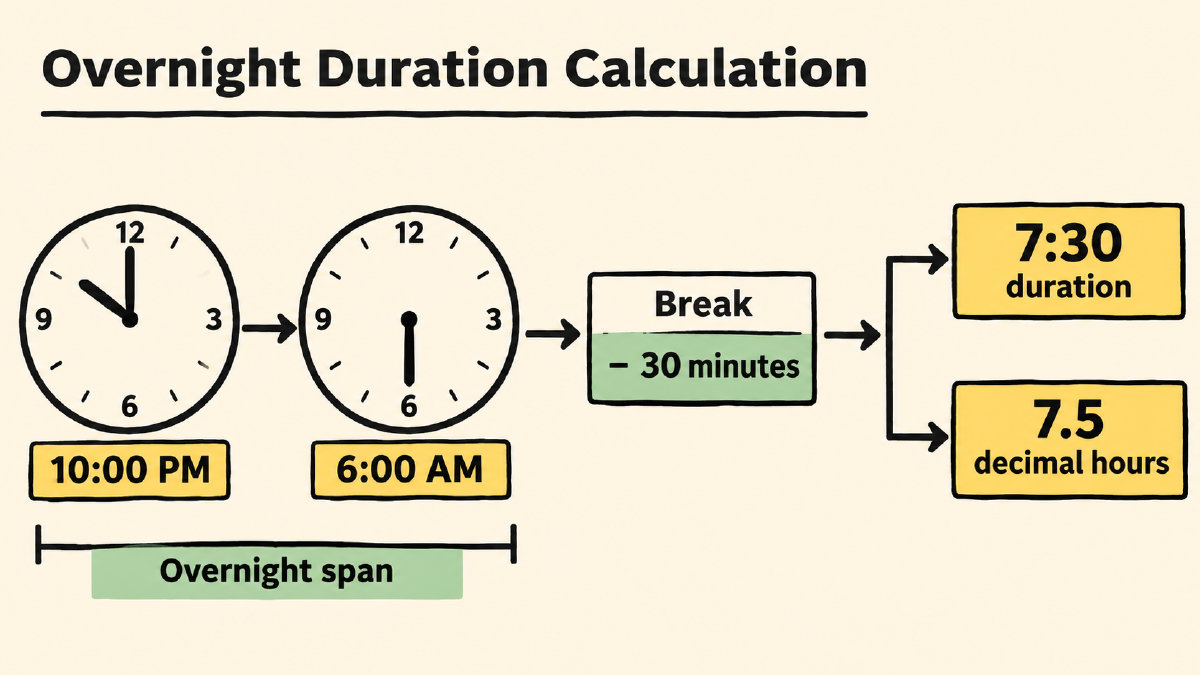
Now, what happens when you have an overnight interval? For example, if your interval starts at 10:00 PM and ends at 6:00 AM, it’s actually shorter than a full day. The straightforward approach would be to simply subtract one from the other.
Unfortunately, the results may not reflect the intended outcome. Let’s look at this:
A2
B2
= B2 - A2
10:00 PM
6:00 AM
-16 hours (Excel may display hashes instead with time formatting)
This doesn’t make sense. How can the result of the calculation be negative? We’ve subtracted in the right order, but these clock times don’t include the change of date at midnight. One possible solution is to use remainder arithmetic:
= MOD(B2-A2,1)
That’s 6:00 AM minus 10:00 PM, mod 1. That equals 8:00 hours.
What if we wanted to do the same thing with identical times? It wouldn’t matter whether they were both 6:00 AM or both 12:00 PM — MOD(0,1) would give us zero. MOD also discards whole days. So if your interval might reach 24 hours, use complete dates and times, then subtract the start from the end directly.
Subtract an Unpaid Break
However, we might not always be looking for the actual duration, but an unpaid break during that interval. In that case, we subtract the length of the break as well.
So suppose that our interval is known, and shorter than a day. And we know how much we paid for the break. Then we can subtract that from the computed duration.
A2
B2
C2
D2
= MOD(B2-A2,1) - C2
10:00 PM
6:00 AM
0:30
7:30
If you want the duration in decimal hours, just multiply D2 by 24.
Add Cumulative Durations
Finally, what happens when you want to compute cumulative durations?
In most cases, the display wraps. You don’t really care what the individual components are; you only want to add them up. Excel adds them correctly, but ordinary clock formatting wraps the displayed total. Instead, if you want to add two durations together, they will add numerically. So let’s say you had 12:45 plus 15:30:
B2
B3
B4
= B2 + B3
12:45
15:30
4:15
You’ll notice that it’s displayed as 4:15, not 28:15. What gives? If you change the cell formatting to [h]:mm, the display changes.
B4
[h]:mm
28:15
This is a very different story! Why? Because we have been storing the durations as their numeric equivalents. So when we added B2+B3, we got 1.177083… days, or 28.25 hours, which Excel displays as 28:15 with [h]:mm formatting.
Move a Timestamp Forward by Hours
But now comes the twist: We also have a different way of representing durations. Suppose we want to move a timestamp forward a certain number of hours, carrying any full days into the date. One approach is to add them as a fraction of a day:
A2
= A2 + 30/24
November 4, 2026 at 9:00 AM
November 5, 2026 at 3:00 PM
This works. But what if you tried to specify the hours in terms of their clock time?
TIME(30,0,0) is valid. Why? Because Excel accepts hour arguments from 0 to 32767, but divides values above 23 by 24 and keeps the remainder. So what if we try this instead?
= A2 + TIME(30,0,0)
This adds only 6 hours, returning November 4, 2026 at 3:00 PM.
So what does all this mean? Well, it shows the difference between adding durations and moving timestamps. While these are different functions, they behave differently based on how they’re constructed.
Want to check out the worked-out examples separately? Connect to this site’s duration calculator, and the conversion tool. The first checks overnight intervals and unpaid breaks. The second converts hours and minutes to decimal hours and back. For 12:45 + 15:30 = 28:15, use the main calculator, which adds and subtracts durations.
Sources
- Calculate the difference between two times in Excel | Microsoft Support
- How to Calculate Time in Excel: Complete Tutorial & Formulas
- Add or subtract time in Excel | Microsoft Support
- Format numbers as dates or times | Microsoft Support
- MOD function | Microsoft Support
- TIME function | Microsoft Support